
Green screen to transparent video converter
Drop an overlay on green, check the cut-out, and download a file that stays transparent in your editor.
Runs in your browser. Nothing is uploaded.
Drop a green screen clip here
MP4, MOV or WebM, up to 15 seconds. It stays on this device.
The checkerboard shows where the file will be transparent. Click any leftover background in the preview to key that colour instead.
Lossless PNG frames, so the file is large. Up to 15 seconds.
Import the MOV and place it on a track above your video. It is already transparent. If it shows a black box, right-click it, Modify, Interpret Footage, and set Alpha to Straight.
How to make a transparent video from green screen
- 1Drop a clip that sits on green or another flat colour, up to 15 seconds long.
- 2Check the key colour, read from the corners of the first frame. If some background is left, click it in the preview to pick it.
- 3Raise Tolerance until the background is gone, then set Edge softness and Spill for clean edges. Check on the dark and light backdrops too.
- 4Pick your editor and download the transparent MOV, the WebM, a PNG sequence or one PNG still.
What editors use it for
Overlays you downloaded on green
Subscribe buttons, stickers, light leaks and animated arrows are often shared on a green background. Convert once and place the file on a track above your video without setting up a keyer.
Graphics from tools that export on green
Lower thirds, callouts and counters from tools that only give you a green screen MP4, including some on this site, become files a desktop editor places as they are.
Streaming with OBS
A transparent WebM plays in an OBS Media Source over your scene, with no Chroma Key filter to tune on every scene.
Handing files to another editor
Send a collaborator a clip that is already cut out, so the key does not have to be rebuilt on a different machine.
Which file for which editor
No single transparent video file opens in every editor. Desktop editors document a transparent MOV as the way in. OBS and web pages read a transparent WebM; Premiere Pro and After Effects do not import WebM at all. Phone editors do not keep transparency in imported video, so for them the green screen original, keyed in the app, is the right file. Every file this tool writes was checked by inspection (PNG frames with an alpha channel in the MOV, an alpha track in the WebM); imports inside each editor were not tested here, and the steps below follow what each vendor documents.
| Editor | Use | How to place it |
|---|---|---|
| Premiere Pro | Transparent MOV | Import the MOV and place it on a track above your video. It is already transparent. If it shows a black box, right-click it, Modify, Interpret Footage, and set Alpha to Straight. |
| After Effects | Transparent MOV | Import the MOV and drop it into your composition above the footage. If the background shows, Interpret Footage, Main, and set Alpha to Straight. |
| DaVinci Resolve | Transparent MOV | Import the MOV and place it on the track above your video. If it shows a black box, right-click the clip in the Media Pool, Clip Attributes, and set Alpha Mode to Straight. |
| Final Cut Pro | Transparent MOV | Import the MOV and connect it above your clip in the timeline. It is already transparent. |
| OBS | Transparent WebM | Add a Media Source and choose the WebM. OBS shows it with its transparency. |
| CapCut | Your green screen original | CapCut does not keep transparency in imported video. Add the original above your video and remove the green with Chroma key. |
| VN | Your green screen original | VN does not keep transparency in imported video. Add the original above your video and remove the green with Chroma key. |
| InShot | Your green screen original | InShot does not keep transparency in imported video. Add the original above your video and remove the green with Chroma key. |
| Canva | Your green screen original | Canva does not keep video transparency and has no chroma key. Use the original as a full-frame clip, or a PNG still from here. |
Limits, and what happens to the sound
The MOV and the WebM run up to 15 seconds, the PNG sequence up to 10 seconds, at up to 1920 pixels on the long side and 30 frames per second; a faster clip is written at 30 fps. Sound is dropped: the transparent files are picture only, so keep the original if the overlay has a sound effect and place that audio separately. The keying works on one flat colour. A background with shadows, creases or uneven light leaves patches you can only partly fix with Tolerance.
Transparent video kaise banaye (green screen se)
Apni green screen wali video yahan drop kijiye, 15 second tak ki. Video upload nahi hoti, sab kuch aapke browser mein hota hai.
Tool video ke corners se green rang khud pakad leta hai. Agar background poora nahi hata, to preview mein background par click kijiye aur Tolerance thoda badhaiye.
Premiere Pro, DaVinci Resolve ya Final Cut ke liye transparent MOV download kijiye. OBS ke liye WebM. Is file mein sound nahi hota.
CapCut, VN aur InShot video ki transparency nahi rakhte. Unme original green screen video hi lagaiye aur Chroma key se green hata dijiye.
Questions
Why can an MP4 not be transparent?
An MP4 from a phone, a stock site or a tool like this one holds H.264 video, which stores colour and no transparency, so it always has a background. Transparency needs a format with an alpha channel. This tool writes three: a MOV with PNG frames, a VP9 WebM with alpha, and PNG images.
Which file do I need for Premiere Pro, DaVinci Resolve, Final Cut, CapCut or VN?
For Premiere Pro, After Effects, DaVinci Resolve and Final Cut Pro, take the transparent MOV. Adobe, Blackmagic and Apple document a transparent MOV as the way in; their lists name ProRes 4444, and this MOV holds PNG frames instead. We checked every file with ffprobe, not inside each editor, so if yours shows a black box, use the PNG sequence. CapCut, VN and InShot do not keep transparency in imported video: use your green screen original there and remove the green with Chroma key.
Why is the transparent MOV so much bigger than my MP4?
Every frame is stored as a lossless PNG, so nothing is thrown away and the file is many times the size of the compressed clip you started with. The page shows a rough size before you download. Choose 720p for a smaller file, or the WebM if OBS or a web page is where it goes.
What is the longest clip it converts?
Up to 15 seconds for the MOV and the WebM, and up to 10 seconds for the PNG sequence, at up to 1920 pixels on the long side and 30 frames per second. Trim a longer overlay to the part you need first. Sound is not carried over: every file here is picture only.
Is my clip uploaded anywhere?
No. Decoding, removing the colour and writing the file all happen in this browser tab. Nothing is sent to a server, and the name of your file is never recorded.
Tools that go with this

A name and title card that wipes in over your footage.
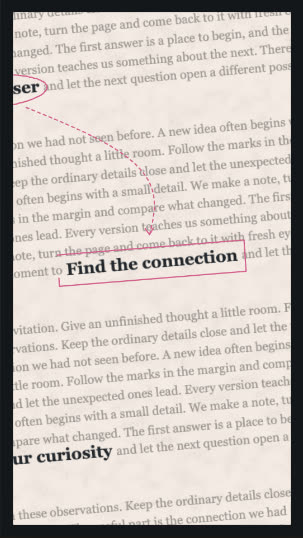
Connect your words through a moving, annotated document.
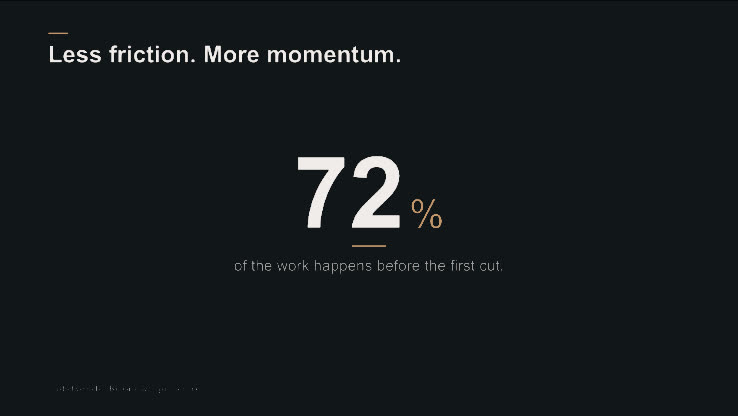
Animate a number into a clean, ready-to-edit stat card.
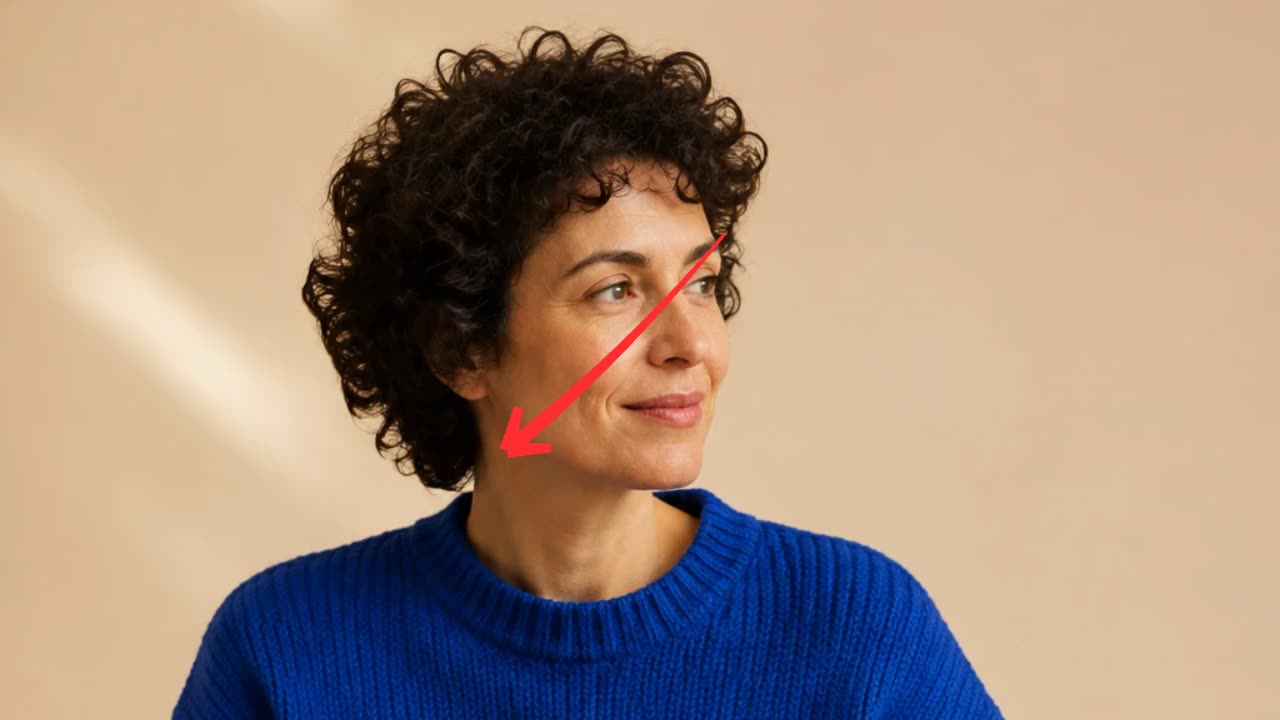
A hand-drawn arrow, circle, underline or cross-out that draws itself over your footage.
In Headroom: AI Edits: motion graphics placed on your video for you